Access Fullstride Faster: How to Create a Mobile Shortcut
Learn how to add Fullstride to your home screen on iPhone and Android for one-tap access to your horse records.
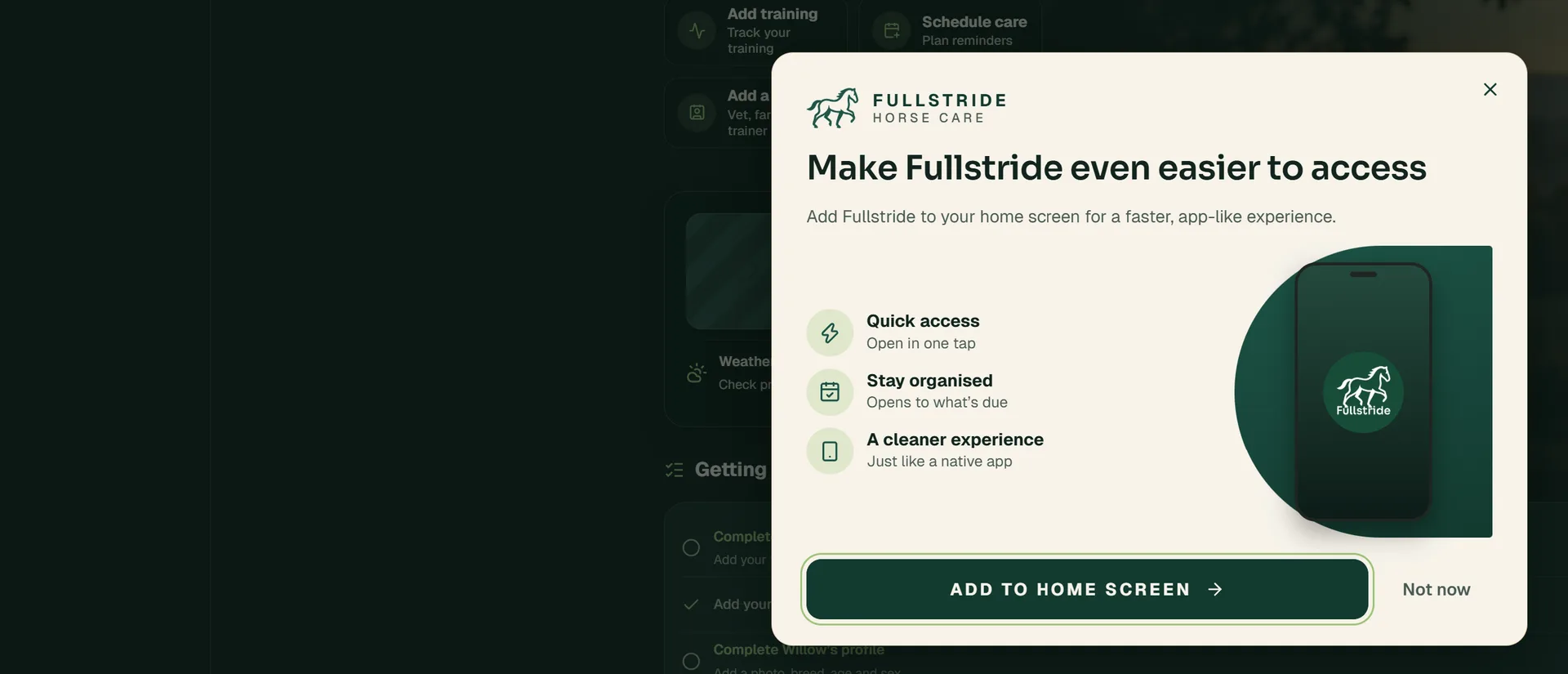
Adding Fullstride to your phone’s home screen gives you one-tap access, so it opens and works just like a mobile app.
The easiest way: use the Fullstride prompt
When you use Fullstride Horse Care in a browser that supports it, Fullstride offers to add itself to your home screen. Look for the Make Fullstride even easier to access card:
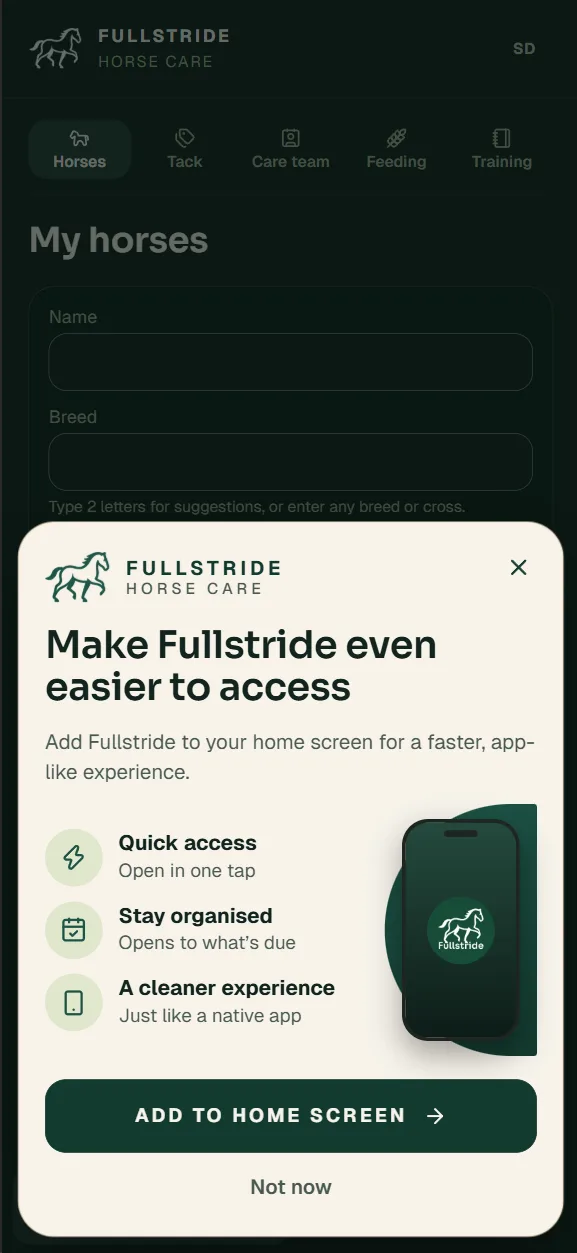
- On Android and other browsers that can install apps directly, tap Add to Home Screen, then confirm in your browser’s install window.
- On iPhone and iPad, the card shows you how: tap Share, then choose Add to Home Screen.
Tap Not now if you would rather do it later. Fullstride will not ask again for a while, and you can always add it yourself using the steps below. Once Fullstride is on your home screen, the card no longer appears.
For iPhone (iOS) Users
Apple uses Safari to create home screen shortcuts. It only takes a few seconds:
- Open Safari and go to https://www.fullstride.app, then sign in.
- Tap the Share icon (the square with an arrow pointing up).
- Scroll down the list of options and tap Add to Home Screen.
- You can keep the name "Fullstride" or change it if you like, then tap Add in the top right corner.
The Fullstride icon will now appear on your home screen. You can move it into a folder or place it right on your main screen for easy access.
For Android Users
On Android, the process is very similar using the Google Chrome browser:
- Open Chrome and go to https://www.fullstride.app, then sign in.
- Tap the three dots (menu icon) in the top right corner.
- Select Add to Home screen (or Install app, depending on your version of Chrome).
- Tap Add or Install when the confirmation box appears.
Android may also give you the option to manually place the icon or have it added automatically to the next available spot on your home screen.
Why use a shortcut?
- Quick access: Open Fullstride in one tap, with no typing web addresses or searching through bookmarks.
- Stay organised: Your horses, care reminders and records are always a tap away.
- A cleaner experience: Opened from your home screen, Fullstride fills the screen without browser bars, just like a native app.
Whether you are recording a last-minute worming dose or showing a practitioner your horse’s history, having Fullstride right there on your home screen saves time and keeps your records updated in the moment.